Use a photo of your own room
Upload a living room, office, or other space. Work with the actual wall and surroundings you want to preview.
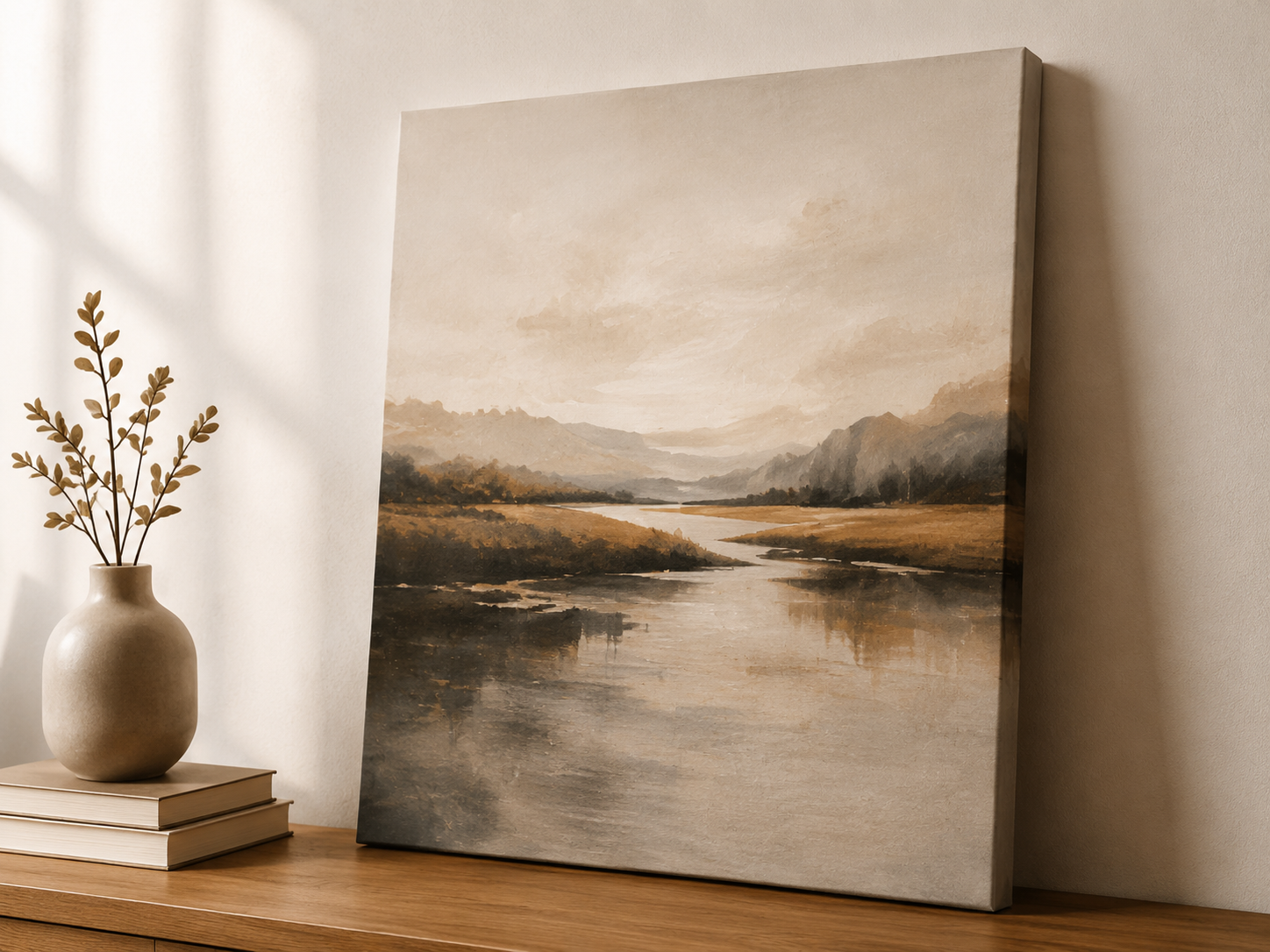
Wondering how a print will look on the wall? Bring your own room photo and artwork into one easy visual preview. Position it, try a frame, and see the composition before you share it.
Your design workflow
From artwork to wall
01 Bring in your artwork
02 Upload your room photo
03 Place and frame the art
04 Download your preview
Uses artwork you already own or can access in your Asset Library.
Made for a real room
A simple way to judge how a piece fits a space and create a visualization of your wall art, without rebuilding the room in another design tool.
Upload a living room, office, or other space. Work with the actual wall and surroundings you want to preview.
Upload an artwork file or choose an existing piece from your DreamRender Asset Library.
Set the four corners of the artwork on the wall, then adjust the placement before downloading.
Preview a crisp black frame, clean white frame, or warm oak finish around your selected artwork.
Save the completed room visualization or download the artwork separately from the final preview screen.
When you need a larger artwork file, access the optional high-resolution upscale from the final result.
Four clear steps
Bring the room and artwork together, make your adjustments, and take away the result.
Start with a file you upload or an artwork from your DreamRender Asset Library.
Upload a picture of the space and wall where you want the artwork to appear.
Set the artwork corners, review the composition, and choose black, white, or oak.
Download the visualization or art-only image, with optional upscaling when needed.
Choose the right Studio
DreamRender offers two ways to present artwork, depending on the project you're working on.
Use your own room photo and choose where a single artwork belongs.
Open Wall Art StudioNo. The current Wall Art Studio workflow lets you upload your own artwork or select an existing DreamRender Asset Library artwork.
Yes. Upload a room photo, then place the artwork on its wall using four placement points.
Black, white, and oak are available in the current Studio.
Wall Art Studio is available on Starter, Pro, and Premium plans. Optional processing features may use credits.
Create. Design. Sell. Grow.
Preview artwork in a space that matters to you, then download the composition when it feels right.