How to Create Junk Journaling with Your Own Custom Ephemera and Fussy Cuts
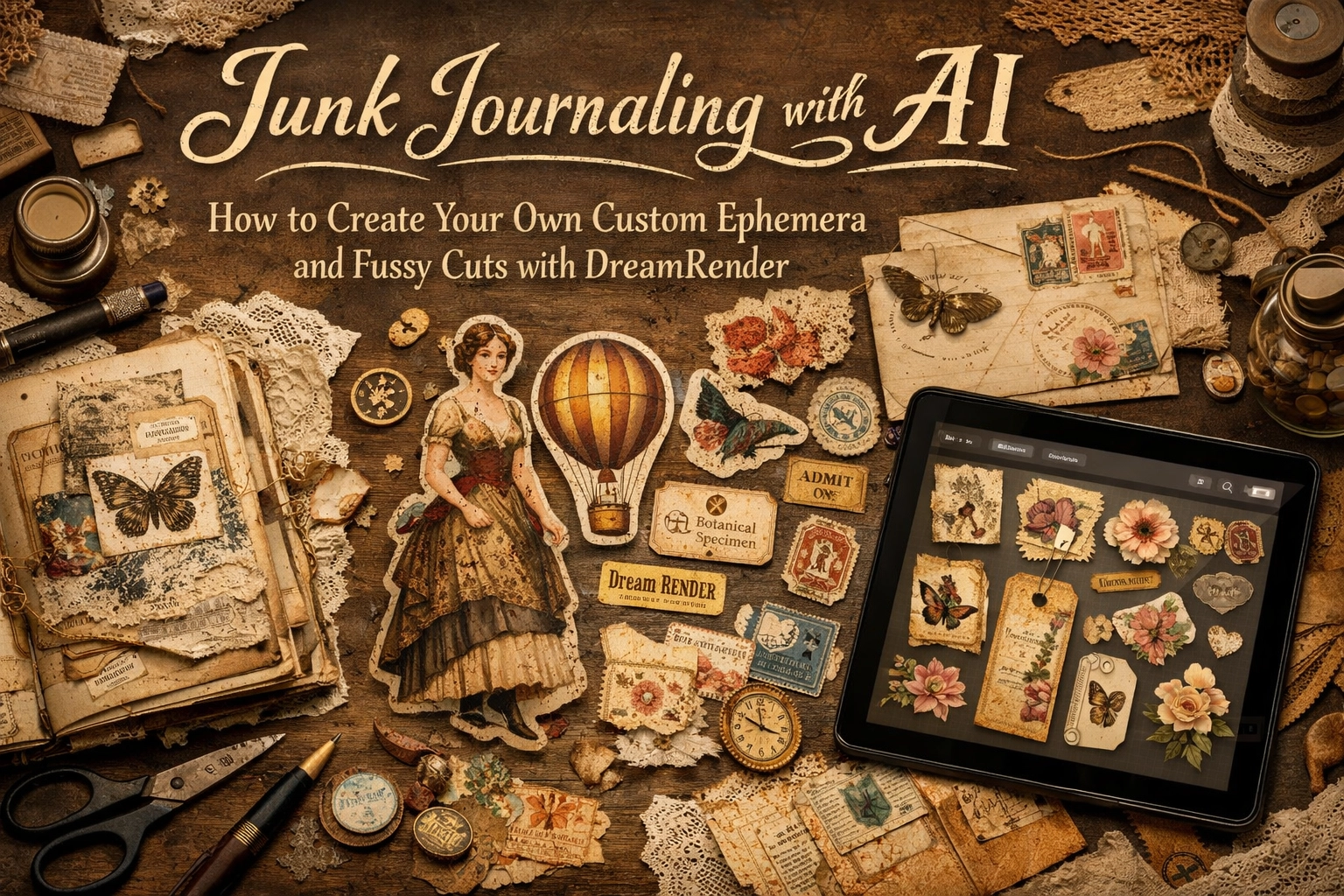
How to Create Your Own Custom Ephemera and Fussy Cuts with DreamRender AI Art and Image Editing Software.

If you’ve ever spent three hours scouring Pinterest for the "perfect" vintage botanical print or a specific shade of weathered indigo paper, you know the struggle of the junk journaler. We love the hunt, of course: there's nothing quite like finding a hidden gem in a dusty thrift store: but sometimes, our creative vision is just too specific for the local flea market to handle.
That’s where the intersection of high-tech and high-touch crafting comes in. We’re pulling back the curtain on how we use DreamRender to bridge the gap between digital imagination and physical creation. By using AI to generate custom ephemera, you aren't just making a journal; you’re curated a one-of-a-kind artifact that reflects your unique style.
Whether you’re a seasoned "fussy cutter" or a newcomer to the world of paper play, here is how you can use AI to supercharge your journaling journey.
What Exactly is Junk Journaling?
Before we dive into the tech, let’s talk about the craft. Junk journaling is the art of creating a book using a mix of found and created materials. It’s a messy, beautiful, tactile process that involves "junk" like old envelopes, ticket stubs, and discarded book pages, combined with artistic elements like stamps, washi tape, and hand-painted papers.
A huge part of the process involves ephemera: those little bits and bobs like vintage labels, postcards, and botanical illustrations that give a journal its character. And then there is fussy cutting: the meditative (and sometimes grueling!) process of manually cutting out intricate shapes with fine-tipped scissors to create dimensional elements for your pages.
Why AI is a Journaler’s New Best Friend
Traditionally, journalers rely on expensive "digital kits" or vintage paper packs. While these are great, you’re limited to what someone else has designed. With DreamRender, you become the designer.
Need a Victorian-era portrait of a woman holding a black cat? Done. Need a watercolor mushroom that matches a very specific shade of moss green? Easy. We’ve designed our platform to handle the heavy lifting of art creation so you can focus on the tactile joy of cutting, gluing, and layering.
You can explore our How It Works page to see how simple it is to turn a text prompt or an existing photo into a printable masterpiece.
Mastering the Styles for a Vintage Vibe
The secret to making AI art look "at home" in a junk journal is choosing the right art style. You don’t want high-gloss, hyper-realistic digital renders; you want something that looks like it was plucked from a 19th-century sketchbook.
The Watercolor Aesthetic
Watercolor is the bread and butter of junk journaling. Its soft edges and bleeding colors blend beautifully with tea-dyed paper. Our Watercolor style creates delicate, flowing lines that mimic hand-painted illustrations.

When you use our watercolor features, the AI adds those characteristic "water blooms" and soft pastel washes that look incredible when printed on textured cardstock or vellum. It’s perfect for creating tuck-spots, pockets, or large background pages.
The Sketch and Pencil Look
For a more academic or "field notes" style journal, the Sketch and Pencil Drawing styles are game-changers. Imagine a series of "hand-drawn" sketches of birds, insects, or even your own pets to include in a nature-themed spread.

The fine line work produced by our AI emphasizes texture: whether it’s the fluff of a dog’s fur or the delicate veins of a leaf: giving your journal an authentic, historical feel.
The Vintage and Oil Painting Styles
Sometimes you need something with a bit more "heft." Our Oil Painting style offers thick brush strokes and muted tones like ochre and cream. These work exceptionally well as focal points on a page or even as the "cover" for a small handmade booklet within your journal.

Themes to Spark Your Creativity
Not sure where to start? We’ve seen our community create some breathtaking pieces by focusing on these three core themes:
Botanicals and Mycology: Wildflowers, ferns, and mushrooms are staples of the journaling world. Instead of using the same clip-art everyone else has, generate "rare" botanical species in a watercolor style.
Vintage Portraits: Create "imaginary ancestors." You can take a modern photo of yourself or a friend and use our Transform feature to turn it into a 1920s sepia-toned portrait.
Abstract Textures: Junk journals need "filler" papers. Generate abstract textures in muted blues and creams to create custom backing papers that don't distract from your main focal points.

The Magic of Fussy Cutting with High-Res Downloads
Now, let’s talk about the physical part: fussy cutting. If you’ve ever tried to print an image from a low-quality Google search, you know that the edges get blurry and "pixelated" when you try to cut around them. It ruins the illusion of a vintage find.
This is why high-resolution downloads are non-negotiable. At DreamRender, we prioritize clarity. When you generate an image in our Creative Studio, the output is sharp enough to be printed at full-page size or shrunk down to a tiny postage stamp without losing detail.
Pro Tip for Fussy Cutting:
Generate with a White Background: If you know you’re going to cut an element out (like a flower or a bird), try adding "on a plain white background" to your prompt. This makes the fussy cutting process ten times easier because you have a clear boundary for your scissors.
Print on Mixed Media Paper: For a truly "authentic" feel, print your AI creations on matte photo paper or thin cardstock. The ink will sit differently, giving it a more tactile, professional finish.
Step-by-Step: From Prompt to Page
Ready to try it yourself? Here is the exact workflow we use to create custom ephemera:
Visualize the Need: Determine what your page is missing. "I need a vintage-style blue butterfly to go with this ticket stub."
Generate in DreamRender: Head to the Creative Studio and use a prompt like: "Vintage watercolor illustration of a blue Morpho butterfly, soft edges, aged paper texture, high detail."
Refine the Style: Choose the Watercolor or Vintage style preset to ensure the aesthetic matches your journal.
Download High-Res: Grab the high-resolution file. This is crucial for the print quality! Check our Pricing if you need more credits for those high-definition exports.
Print and Cut: Print your design. Once the ink is dry, grab your precision scissors and start fussy cutting.
Distress and Glue: Use some distress ink around the edges of your cut-out to hide the white paper core, then glue it into your journal.
Sustainability and Uniqueness
One of the things we love most about using AI for journaling is the sustainability factor. Instead of buying a massive book of stickers where you only use five, you are printing exactly what you need, when you need it.
Furthermore, your journal becomes a true reflection of your mind. No one else will have that exact combination of elements because you were the one who guided the AI to create them. It’s a collaboration between your artistic direction and our cutting-edge technology.
Final Thoughts
Junk journaling is a labor of love. It’s a way to slow down in a fast-paced world and create something beautiful with your hands. By integrating DreamRender into your process, you aren't taking a shortcut; you’re expanding your toolkit. You’re giving yourself the power to manifest any image, any style, and any era: all from your desk.
Ready to start your first AI-enhanced journal? Check out our Gallery for inspiration from other creators, or jump right in and start creating your own ephemera today. We can’t wait to see what you build!
Happy Journaling!
Ready to Transform Your Photos?
Experience the magic of AI-powered art transformation with DreamRender.
Start Creating Now